 Español
 English
 Português
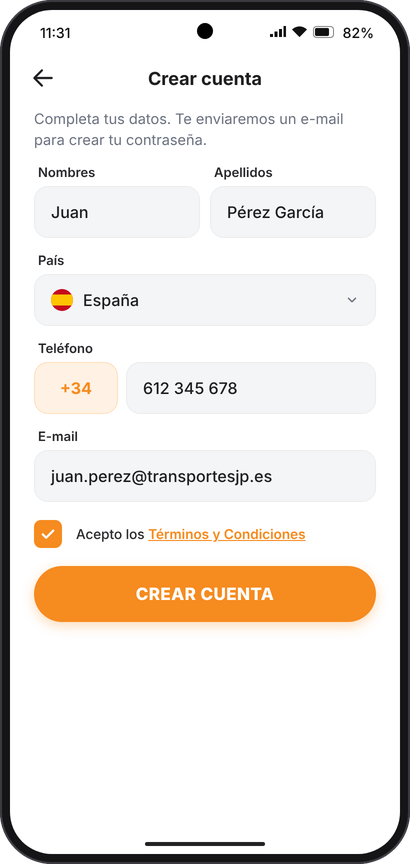
1Sign up
- aOpen the app and tap Sign up.
- bEnter your first name, last name, country, phone and e-mail. The country code is filled in automatically.
- cTick the box I have read and accept the Terms and Conditions.
- dTap CREATE ACCOUNT.
How to use the VIGILO GPS app, step by step and with pictures. Android and iPhone · version 2.0 · October 2026.
VIGILO GPS turns a phone into a tracker. There are two ways to sign in to the app. Find yours:
For example, the business owner or a family member.
For example, a driver or an employee.
How it works, in 5 steps
An Android phone or iPhone with internet access and location (GPS) turned on. Download VIGILO GPS from Google Play or the App Store.
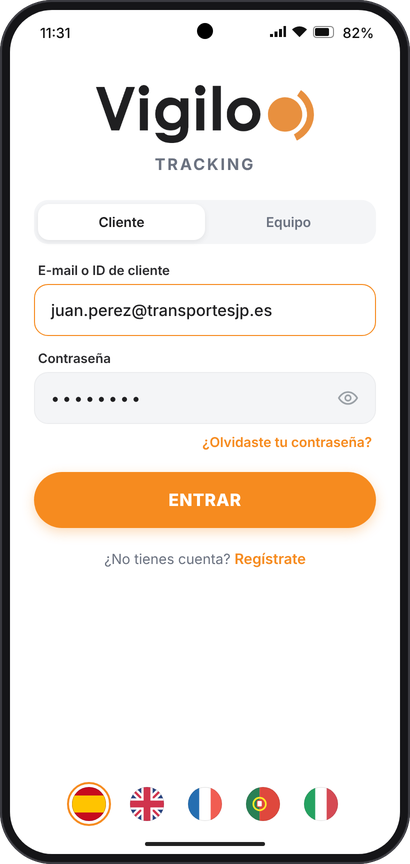
Use the flags at the bottom to change the language: Spanish, English, French, Portuguese or Italian.
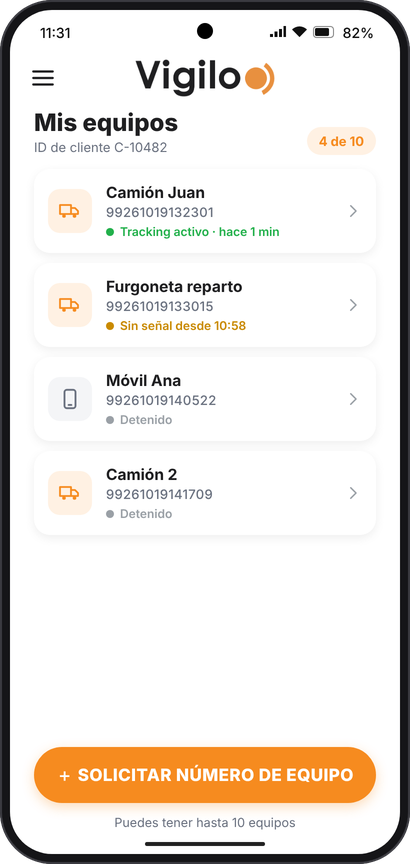
A device is each phone you want to see on the map. You can have up to 10.
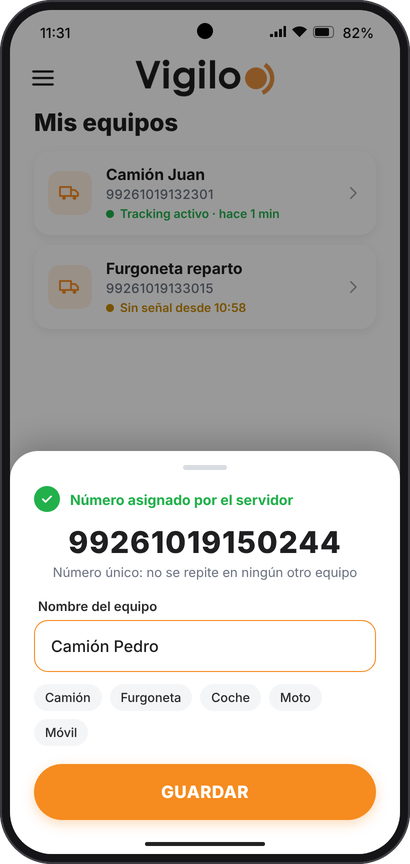
The person carrying the phone needs two details: your customer ID and the device number.
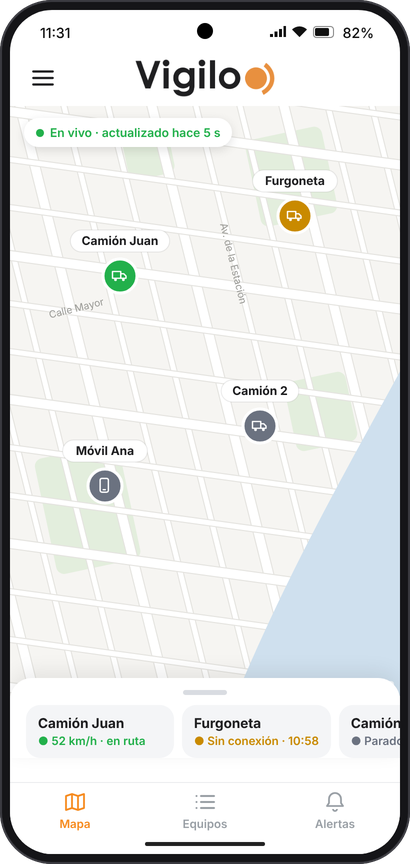
Tap the Map tab. You will see the latest position of each phone. It updates automatically every few seconds.
Tap a device to see its details.
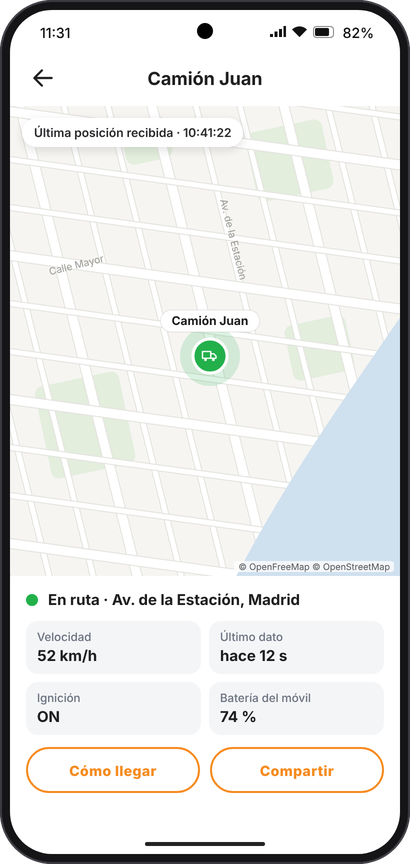
You will see the address, the speed, whether it is moving (ignition) and the phone's battery.
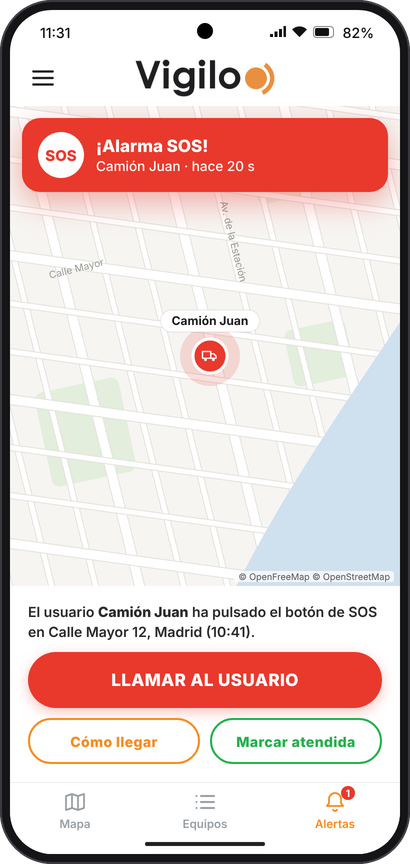
If someone presses SOS, a red banner appears with the message: "User … has pressed the SOS button".
You will only use two buttons: START / STOP TRACKING and SOS.
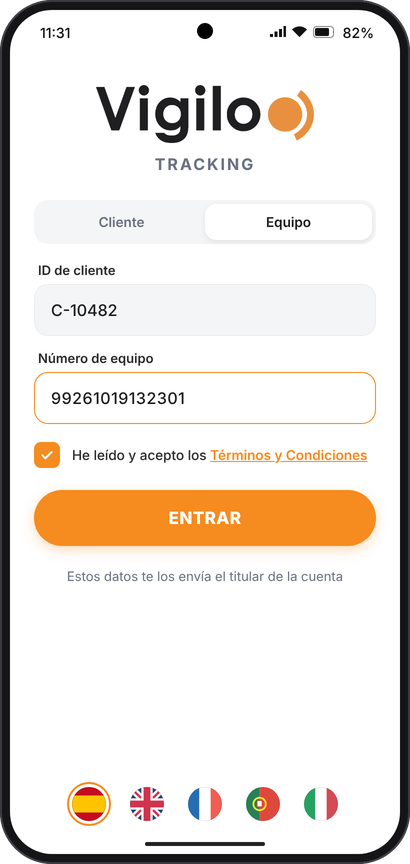
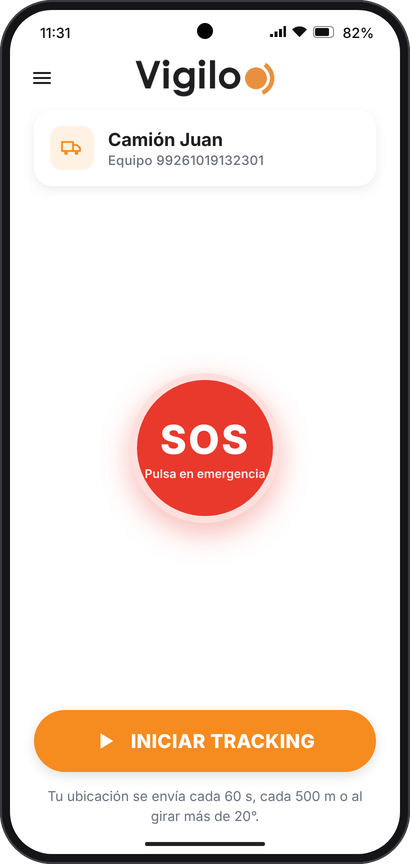
The green "Tracking activated" box appears. You can now lock the screen and put the phone away: it keeps working.
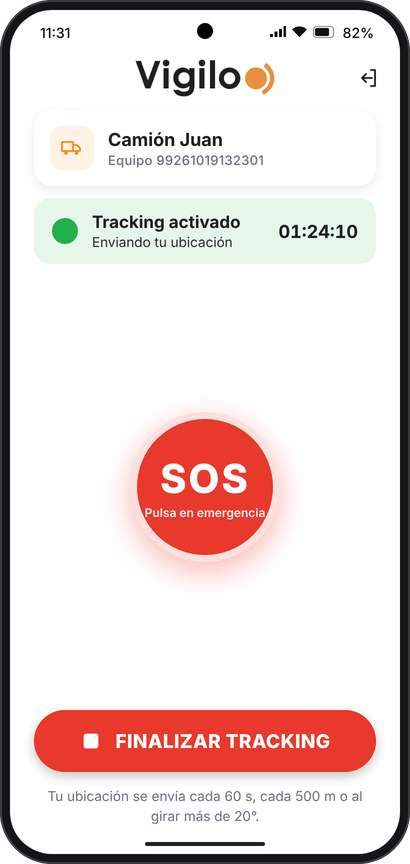
If you have an emergency, tap the red SOS button once.
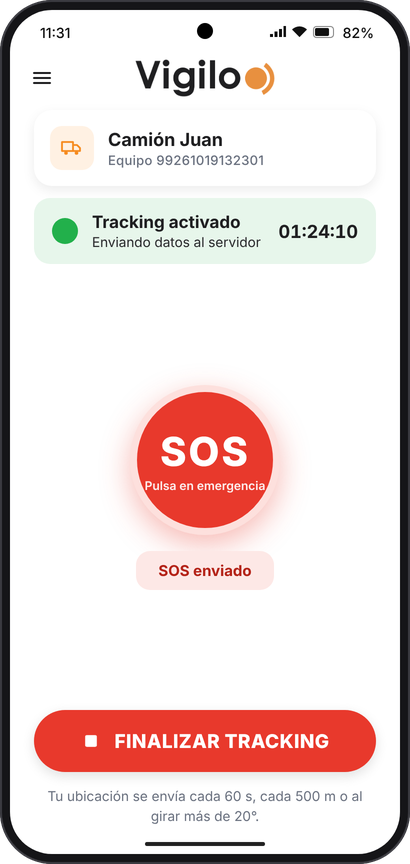
From then on your location is no longer sent. Tomorrow, tap START TRACKING again.
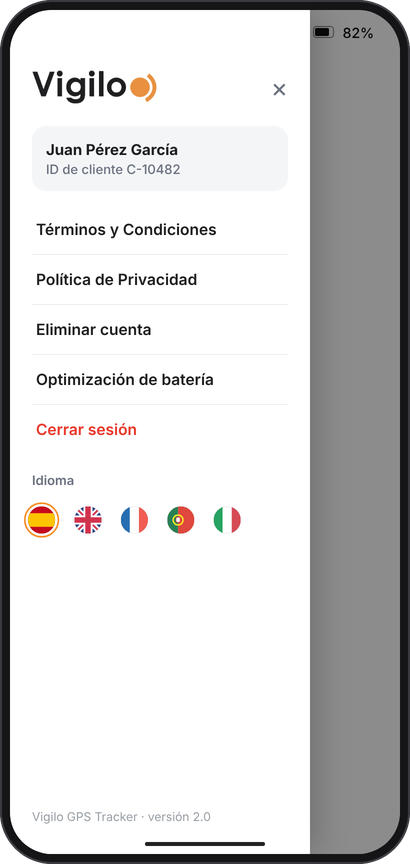
Tap ☰ (top left) to open the menu:
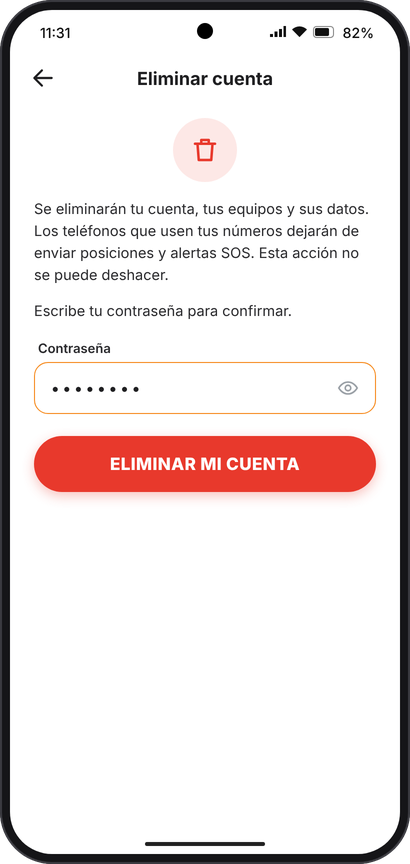
You can also request it without the app at www.vigilo.es/eliminar-cuenta.
| What happens | What to do |
|---|---|
| I don't receive the e-mail to create my password | Check your spam folder. In the app tap Resend e-mail. Make sure the e-mail address is correct. |
| "E-mail not verified" when signing in | First tap the link in the e-mail and create your password. |
| "Invalid device" when signing in as Device | Check the customer ID and the device number (14 digits). Ask the account holder to send them again. |
| The device appears in amber or "No signal" | The phone has no signal or is switched off. Positions are sent automatically when the signal returns. |
| It stops sending when the screen is locked | Phone settings › Location › VIGILO GPS › Allow all the time (Android) or Always (iPhone). On Android, also turn off battery optimisation. |
| "SIGN IN AGAIN" appears | That number was used on another phone or the account holder removed it. Tap SIGN IN AGAIN and enter the details again. |
| I can't create more devices | The maximum is 10 devices per account. |
| I can't see the SOS alert | Open the app and check the Alerts tab. Keep the app open to see them instantly. |
| I can't sign out (Device) | First tap STOP TRACKING. |
Need help? Message us on WhatsApp or visit www.vigilo.com.sv.
Message us on WhatsApp